
GoreBox Beginners Guide | Getting Started Safely
New to GoreBox APK? Learn how to start safely, set up your first session, understand the sandbox, and adjust controls and graphics before you experiment.

Make GoreBox more comfortable on Android with accessibility-minded setup: text and interface comfort, control size and sensitivity, sound options, and Android's own accessibility tools.
Accessibility settings are not a special category for other people; they are the comfort engineering every player deserves. Larger targets, calmer sensitivity, readable text, and manageable sound make GoreBox better for players with limited dexterity or vision, for players with tired eyes at midnight, and for anyone playing one-handed on a train.
This guide walks through the game's own options where they exist and Android's system tools, which apply across the device and are often more powerful than anything inside a single game.
Start with the controls, because they gate everything else. Larger buttons, generous spacing, and reduced sensitivity serve shaky hands, small hands, and one-handed play alike. The touch controls guide covers the method: tune on your smallest common movement, test in a practice world, and let the layout look however your hands need it to look.
If your version offers any hold-versus-toggle or automation options for repeated actions, try them; repeated tapping is the first thing that exhausts many players, and removing it changes sessions from endurance tests back into building.
Android's display settings, font size and display size, change how much of the interface fits and how readable it is, and many games inherit at least part of that scaling. High-contrast and colour-correction options in Android's accessibility menu can also help where the game's palette is busy.
In the game, brightness and graphics choices affect readability too: a slightly lower render scale with a steady image is easier to read than a sharper image that judders. Comfort is a performance setting, and the eye's comfort outranks the screenshot's beauty.
Keep in mind:
A sandbox can be a loud, chaotic sensory environment. Keep master volume at a level that leaves headroom, separate music and effects where the game allows so the informative sounds stay audible without the overwhelming ones, and take the simple option of playing muted with visual attention when a session is for quiet building.
Screen shake, flashes, and intense effects, where any settings exist for them, should be set to your comfort without apology. Games are leisure; a setting that keeps a session pleasant is a setting working exactly as intended.
Android's accessibility suite reaches further than most games: magnification gestures for reading small interface corners, switch access and voice access for alternative input, and mono audio and hearing accommodations for sound. If GoreBox is a favourite game, an hour learning your phone's suite pays across every app you own.
External controllers, where supported by your device and the game, are another legitimate route to comfort, changing posture and precision entirely. There is no official way to play that outranks the way that lets you play comfortably and safely.
Making GoreBox accessible is ordinary good setup, done deliberately: controls sized and spaced for your hands, sensitivity calmed, Android's font, contrast, and input tools recruited, and sound kept at a humane level. An hour of comfort engineering returns a sandbox you can stay in for years.
Download GoreBox APKNew to GoreBox APK? Learn how to start safely, set up your first session, understand the sandbox, and adjust controls and graphics before you experiment.
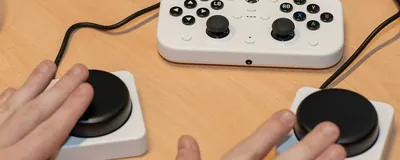
Set up GoreBox touch controls on Android for comfortable sandbox play, covering layout, sensitivity, button size, and testing adjustments in a safe practice world.
Choose GoreBox graphics settings on Android that balance clarity and smoothness, covering resolution, effects, shadows, and how to test changes without overheating your phone.